GPT-6 for Real Estate: My Client-Event Website Test

Quick Summary
- I gave GPT-6 a recurring problem from our real estate business: build one branded client-event website that a 30-person team could use for invitations and registration tracking.
- My first use case was our Cox Farms event, where separate invitation pages and guest lists had become a coordination headache.
- Under five minutes into the build, the first website preview was on my screen. That was a preview milestone, not proof that every backend feature was finished.
- After I purchased the domain, the system worked through browser settings to connect the address to the website.
- Desktop Computer Use requires the supported app, plugin, permissions, and product access. Model availability and permission to operate a particular app are separate questions.
- The registration flow and agent-specific access still need to be tested before clients are invited.
The Problem I Actually Handed It
GPT-6 has my attention because of how much of an actual task it can carry, not because computer use suddenly became possible. AI systems could already inspect a screen, click, type, and take screenshots to check the result. The more useful question for a real estate business is whether those actions can add up to a practical system that removes recurring work.
For my first use case, I picked a problem we know well. Every year, we throw client events with over a thousand people. We have a 30-person team, and everyone is inviting people from their own client database. Separate invitation pages, separate guest lists, and separate registration updates create a lot of coordination work. The event is supposed to be a good experience for clients. Behind the scenes, managing who invited whom and who has responded can become its own project.
So I asked for an Evite-style website for our Cox Farms event. I wanted our branding, our event details, and one registration form that the whole team could share. I also wanted a backend where an agent could log in and see which of that agent's people had registered and which still needed a follow-up.
That last part is the business requirement. A nice page is useful, but the recurring headache is the connection between the public RSVP form and the team's ability to understand responses. If those pieces are disconnected, someone is still copying records, reconciling lists, and answering the same status questions. The goal was one system that connected those parts.

What I Saw in the First Five Minutes
Under five minutes into the build, the first website preview was already on my screen. It had our logo, photos from Cox Farms, the event details, and an RSVP form. Then the work continued on registration tracking and the agent dashboard.
That timing describes my first visible preview. It does not mean a complete event-management platform was built, tested, secured, and ready for a thousand guests in five minutes. A preview shows that the interface is taking shape. It does not establish whether a submission is stored correctly, whether two agents are isolated from each other's records, or whether the site behaves correctly on every phone.
The distinction matters because the early result is exciting on its own. I could describe a recurring operational problem in plain English and watch a tailored website begin to take shape. I did not have to start by drawing every page or translating the idea into a long technical specification. The system could begin building while the requirements became more concrete.
But a useful demonstration should not skip the part after the first screenshot. The dashboard work, the registration data, and the final checks are what determine whether a preview turns into something the team can actually use. The right takeaway is faster progress toward a business tool, not the disappearance of implementation work.
The Domain Step Made Computer Use Tangible
After I completed the domain purchase, the system worked through the browser settings to connect that address to the website. It clicked through the account, entered settings, and moved the setup forward.
The division of responsibility is important. I purchased the domain. I am not claiming that the model independently decided to buy an address or completed a purchase without me. The part I observed was the browser work involved in connecting the purchased address to the website.
This is where computer use becomes more concrete than a chat response. A model can explain how domain settings work in text, but an operating workflow involves the actual account interface, the current controls, and the result of each change. It may need to inspect a screen, choose the correct place to enter a value, save it, and check what the interface reports next.
Even then, entering settings is not the same as proving every part of a domain connection is finished. The final site needs to resolve at the intended address, load securely, and open the correct project. Any existing services on that domain also need to remain intact. Those are outcome checks, not things to assume from a successful-looking settings screen.
What the Team System Needs to Do
The plan is for every agent to use the same system with that agent's own client database and check responses whenever needed. That means the public form, the invitation identity, and the private dashboard have to agree about the same registration.
At a minimum, a person submitting the RSVP should understand what event they are registering for and what information is needed. The submission should create the expected record once, and the confirmation should be clear. If the same person submits again, the system should handle that deliberately rather than silently creating confusion.
On the agent side, the system needs a reliable way to associate a registration with the correct agent. That association should not depend on the client guessing a name from a long list when the invitation already came from a particular person. The implementation could use a suitable invitation link or another explicit mechanism, but the final design needs to be tested instead of assumed.
The dashboard should show the information that the authorized agent needs. A team-wide view, if required, is a different permission from an individual agent's view. A button that hides another agent's records on screen is not by itself proof that the underlying records cannot be requested. Access needs to be enforced by the application, not just suggested by the layout.
These are requirements for the finished system, not claims that each one was complete when the first preview appeared. They help define what “done” should mean before the event link reaches a client.
Model Access and Computer Access Are Different
OpenAI describes GPT-6 as a model for complex professional work, including computer use, browsing, software engineering, and document creation. Its release announcement describes a staged rollout, beginning with a limited set of organizations and expanding to additional paid ChatGPT plans and API access over the following days.
That is a rollout statement, not a promise that every account already has the same controls. An agent should check the actual model selector and product access available in the account being used. A model can be announced before a specific app feature reaches every user or region.
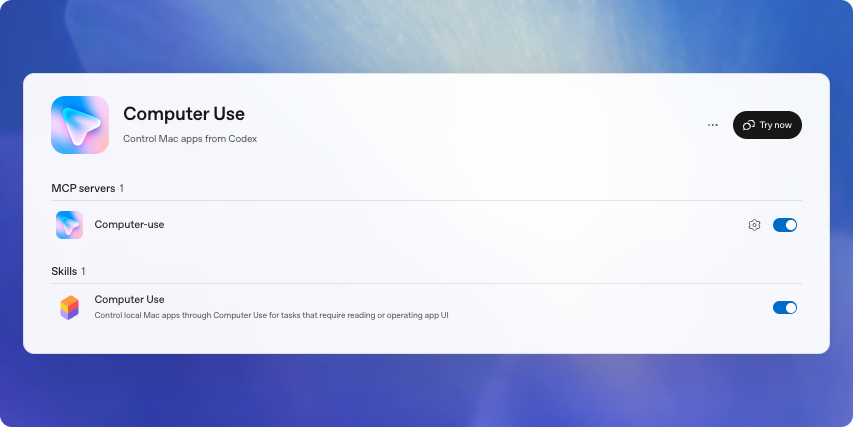
The official Computer Use documentation describes the desktop setup separately. In supported regions, Computer Use is available in the ChatGPT desktop app on macOS and Windows with ChatGPT Work and Codex. The Computer Use plugin must be installed and enabled. App permissions and operating-system permissions still apply.
For website creation, OpenAI also documents Sites, which can create, host, and share websites and web apps from a prompt. That is useful context for the website-building part of the story. It should not be flattened into the claim that every ordinary browser chat session can operate any desktop application or connect any account automatically.
The Mac Setup: Permissions With Different Jobs
On macOS, the official setup calls for Screen Recording and Accessibility permissions. They serve different purposes. Screen Recording lets the system see the relevant app. Accessibility lets it click, type, and navigate.
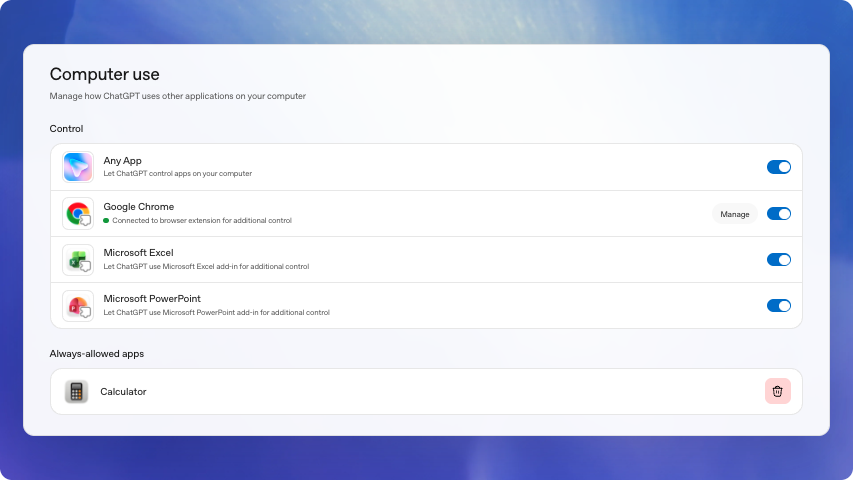
Those system permissions are separate from the apps you allow the assistant to use. Approving a particular browser or application is an app-access decision. It is not a general instruction to operate every signed-in account or change unrelated settings. Workspace administrators may also restrict app access or whether approval choices can be remembered.
The practical setup sequence is to use the supported desktop experience, select Work or Codex as appropriate, install or enable the Computer Use plugin, and review its access controls. If a task cannot see or operate the expected app, check the documented permissions instead of assuming that a model upgrade alone will fix the problem.
The documentation also distinguishes visual operation from other tools. If a dedicated plugin or structured integration handles the data cleanly, that may be the better route for repeatable data work. Computer Use is particularly useful when the task depends on an interface that must be inspected or operated visually. The goal is a correct result, not forcing every action through a mouse click.
What Locked Use Actually Means on a Mac
One detail that stood out to me is locked use. When enabled on macOS, it can allow an active, trusted Computer Use task to continue after the screen locks. That is a specific product feature with controls around it, not a general remote-unlock capability for other software.
According to the official documentation, the app checks that the unlock attempt belongs to an active trusted task. It temporarily operates while preserving the locked-screen protections and covering displays. If local keyboard or pointer input is detected, the Mac relocks and automatic unlock pauses until it is unlocked manually.
This is relevant to longer workflows because a task may need to keep using a desktop app after the person has stepped away from the screen. It does not mean every task can continue unattended, that all permission prompts can be approved automatically, or that a user should expect identical behavior on Windows.
For a first experiment, understand the normal foreground workflow before relying on locked use. Confirm which app is being operated and what the task is allowed to change. Then review the actual result when the task finishes. The value is continuity for a scoped task, not an excuse to stop defining the task.
Windows Has a Different Operating Model
On Windows, the official documentation says Computer Use operates on the active desktop. The target application needs to remain visible, and the assistant may move the pointer and type in that session. It does not run in the background while the person independently uses the same desktop.
That difference affects how a real estate agent schedules the work. A task that is convenient to run alongside other activity on one operating system may occupy the working session on another. The documentation discusses options such as a separate virtual machine or remote progress checks, but the setup should match the actual device and product environment.
Do not copy the Mac locked-use description into Windows instructions. Likewise, do not assume that a supported browser session gives the assistant unrestricted control of the desktop. The model, the app, the operating system, the plugin, and the allowed applications all contribute to what is available.
The shortest useful setup check is practical: can the supported app see the intended window, operate it with the required permissions, and show a verifiable result? If not, resolve that specific missing capability before building a larger workflow around it.

A Starter Brief for a Client-Event Website
The most useful prompt begins with the business outcome rather than a demand for an impressive homepage. Describe the event, who will use the public form, what the team needs to see afterward, and which information belongs to which person.
For example:
Build a branded client-event RSVP website from the approved event details and images I provide. The public form should collect only the information needed for this event. Each invitation must remain associated with the correct team member. Create an agent dashboard that shows only that agent's authorized registrations, plus a separate administrator role if needed. Use fictional sample records for the initial build. Show me a preview, then test registration, duplicate submissions, confirmation, mobile layout, and agent access before any client invitations are sent.
That brief does not prescribe a particular database or login provider. Those are implementation choices that should be resolved in context. It does establish the outcome and the checks that matter to the business.
It also creates a useful stopping point. A first preview is a milestone. A tested registration flow is another. A connected domain is another. Defining those milestones makes it easier to tell whether the work is progressing and which part still needs attention.
The Checks I Would Complete Before Inviting Clients
First, submit a registration using a clearly identified test record and verify what was saved. Check the fields, the associated agent, and the confirmation. Try a duplicate and an incomplete submission so the team knows how those situations are handled.
Second, sign in as two different test agents and verify that each sees only the intended records. Check the direct access behavior as well as the dashboard screen. If an administrator view is required, test that role separately. The purpose is to establish how the system behaves, not merely how the page looks.
Third, use a phone-sized screen and complete the full flow. Read the event details, fill the form, submit it, and find the confirmation. Make sure the important information does not depend on hovering, a large desktop layout, or text embedded in an image.
Fourth, check the connected domain and the intended public destination. Confirm the correct site loads securely and that the event information is current. If confirmations or follow-ups are part of the eventual workflow, test their exact behavior separately before authorizing real messages.
Finally, decide how the team will handle changes. People may update a party size, cancel, or contact their agent instead of submitting another form. A useful system needs a clear operational process for those cases. AI can help build the software, but the team still needs to agree on what the records mean.
Other Real Estate Tasks Worth Trying Next
For related examples, see my ChatGPT voice computer-control test and the single-property website workflow.
Client events are my first example, not the only possible use. The same pattern can apply to a seller update: begin with approved source data, ask for a defined artifact, and check the result before it leaves the business. A draft update is different from an automatically sent message.
Listing preparation is another candidate when the inputs and destination are clear. A system could organize approved property photos, prepare a draft presentation, or help test a property website. The agent still needs to verify the property facts, image use, and final output. A proposed workflow should not be described as a result that has already been demonstrated.
A third option is a recurring internal report. If the task uses known sources and repeats the same steps, the assistant may be able to gather information, update a document, and make the result easier to review. Keep the source period and definitions explicit so that a polished spreadsheet does not conceal mismatched dates or categories.
The point is to choose a problem with a recognizable finish line. “Do more marketing” is hard to verify. “Prepare this event website, connect these records correctly, and show the registration tests” is much more concrete.
The Takeaway From My First Build
The interesting part of GPT-6 for real estate is not simply that it can write about a workflow. It is that a plain-language description can turn into visible work on a system the business actually needs.
In my Cox Farms example, the first preview arrived in under five minutes, and the work continued into registration tracking, the dashboard, and connecting the purchased domain. Those are useful observations from the build. They are not a claim that every feature was production-ready at that moment or that every agent will get the same timing.
The next step is to finish the checks that turn a promising preview into a dependable team tool. That is the standard I would use for client events, listing preparation, seller updates, or any other operational project: define the outcome, supply the right context, let the system do useful work, and verify the result that matters.
For continuing real estate AI breakdowns, explore AgentAIBrief's articles. The objective is practical progress you can inspect, not a longer list of features you never put to work.